
Why Is This So Complicated?
Picture this: you decide it's finally time to ditch the cable on your keyboard. Simple enough, right? You open a browser tab, type "best wireless keyboard," and suddenly you're drowning. There are 400 options. People are arguing about switch colors like they're picking paint for a nursery. Twelve different "best of" lists all recommend different things. Someone on Reddit just wrote 900 words about why your favorite brand is garbage.
All you wanted was to type without a cord.
Here's the thing — there's no single "best" wireless keyboard. There never will be. But there is a best one for you, based on how you actually use a computer and what drives you nuts about the one you've got now. The problem is that most guides skip straight to product recommendations without helping you figure out what you even need. So you end up buying based on someone else's priorities and wondering why this \$120 keyboard doesn't feel right.
That's what this guide is for. The team at Style Review dug through forums, product reviews, buyer complaints, and expert guides so you can skip the rabbit hole. By the time you're done reading, you'll know which features actually matter, which ones are just marketing noise, and — maybe most importantly — what real buyers complain about after the purchase so you don't end up making the same mistakes.
No jargon. No pressure. Just the stuff you need to make a confident choice.
Let's get into it.
Start Here: What Are You Actually Using This Keyboard For?
Most buying guides save this question for the end, which is backwards. If you look at how real people shop for keyboards — especially on Reddit and tech forums — almost every request starts the same way: "I need a keyboard for ___."
That blank matters more than any spec on a product page.
You don't need to fit perfectly into one box, but figuring out your main scenario will make every other decision easier. Here are the four big ones:
The Desk Worker / Home Office Setup
You type a lot. Maybe you're writing reports, grinding through spreadsheets, answering emails all day, or doing some combination of everything. Comfort matters because you're parked at this keyboard for hours. You probably want a numpad if you deal with numbers. Quiet matters if you're on calls or sharing space. And if you switch between a work laptop and a personal computer, being able to hop between devices without swapping cables is a game-changer.
The Gamer
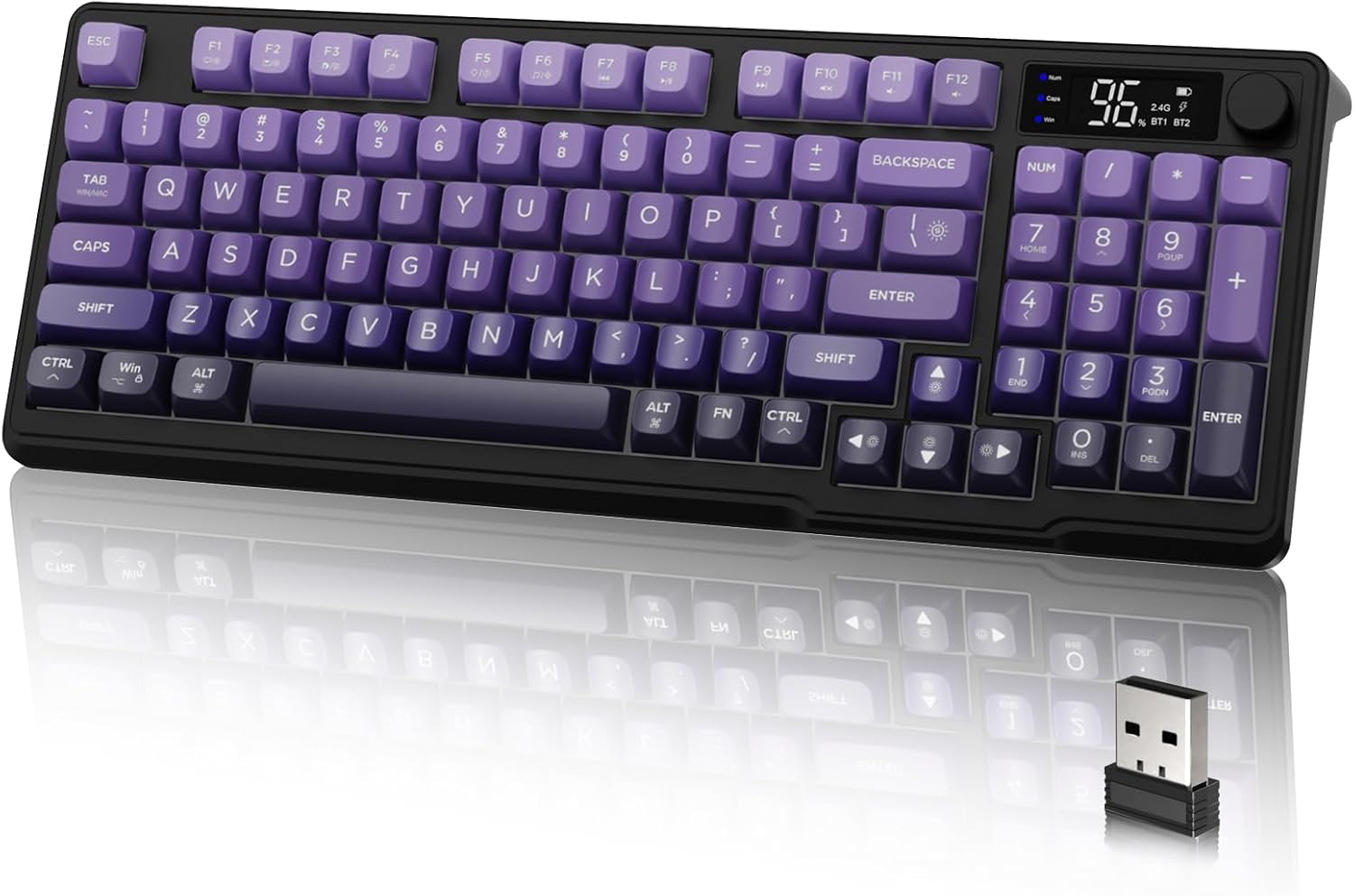
Latency is the big word here — you need the keyboard to keep up with your reactions. Mechanical switches are the norm because they're fast and feel precise. A stable wireless connection (usually via a USB dongle rather than Bluetooth) is non-negotiable for competitive play. Extras like macro keys and RGB lighting are part of the culture, but the core priority is responsiveness.
The Traveler / Tablet User
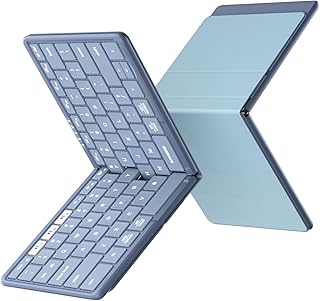
You need something slim and light that slides into a backpack or laptop bag without adding bulk. It should connect easily to an iPad, a phone, or whatever you're carrying. Scissor-style switches (the kind that feel like a laptop keyboard) are common here because they keep the profile thin. Battery life matters more than usual because you might not be near an outlet.
The Couch / Living Room User
You're typing from a sofa, maybe controlling a media center or smart TV. Compact is good. A built-in trackpad is a huge plus so you don't need a separate mouse balanced on a cushion. Long wireless range, solid battery, and a design that doesn't look weird sitting on your coffee table — those are the priorities.
Most people straddle two of these. Maybe you work from home and game on weekends. Maybe you want a desk keyboard that also works with your tablet on the couch. That's totally normal. You'll just need to decide which priorities win when trade-offs come up — and there will be trade-offs. We'll help you spot them as we go.
How It Feels Under Your Fingers: Switches and Typing Experience
If you only read one section of this guide, make it this one.
The switch type inside your keyboard defines how it feels and sounds every single time you press a key. And in forums, product reviews, YouTube comments — everywhere real buyers talk — typing feel is the thing people have the strongest opinions about. It's personal. It's polarizing. And it's the #1 reason people love or return a keyboard.
Here's the simple breakdown.
Mechanical Switches
These are individual spring-loaded switches under each key. They give clear, distinct feedback when you press them — you know when a keystroke registers. They're durable (often rated for tens of millions of presses) and they're the favorite of enthusiasts, heavy typists, and gamers.
Within mechanical switches, you'll see color names that describe how they feel:
- Red switches are smooth and light. No bump, no click, just a straight press. Fast, but some people find them too sensitive — one Reddit user described making more typos because the keys activate with barely any pressure.
- Brown switches give you a small tactile bump partway through the press so you can feel when the key fires. A popular middle ground.
- Blue switches click. Audibly. They're satisfying if you like that typewriter-ish sound and incredibly annoying if anyone else is in the room.
Membrane Switches
Most cheap keyboards use membrane switches — a squishy rubber dome under each key. They're quiet, affordable, and... fine. The word you'll see in reviews is "mushy." For casual use, they get the job done. For long typing sessions, they can feel vague and tiring because you don't get clear feedback that a keypress registered.
Scissor / Low-Profile Switches
These feel like a laptop keyboard. Flat, slim, quiet, with a short travel distance. They're common in compact and travel-oriented wireless boards. Some people love this feel because it's familiar and fast. Others find it too shallow — like you're barely pressing anything.
Here's a made-up scenario to illustrate why this matters: let's say you've typed on laptops your whole life and you decide to buy a tall mechanical keyboard with blue switches. The first day, it's going to feel like trading a sedan for a stick-shift truck. The keys are taller, louder, and the whole experience is just... different. Not bad — but genuinely jarring. Give yourself a solid week before you decide you hate it. Most people who push through that adjustment period end up loving the change.
The honest takeaway? There's no objectively superior switch type. The best one is whatever feels right to your hands, for the kind of typing you do, in the environment you do it in. If you can test a few keyboards in a store before buying, do it. Ten seconds of typing tells you more than a hundred reviews.
Size and Layout — How Much Keyboard Do You Actually Need?
After feel, size is the second thing most buyers mention when they're looking for recommendations. And it's directly tied to your use case, so if you nailed down your scenario in the earlier section, this one should click pretty quickly.
Full-Size (100%)
Everything's here: number pad, function row, arrow keys, navigation cluster. It's the keyboard layout most people picture when they hear the word "keyboard."
Best for: office work, data entry, accounting, anyone who uses the numpad regularly. If you live in spreadsheets, don't compromise on this.
Trade-off: it's big. Takes up the most desk space and pushes your mouse further to the right (or left), which can actually cause shoulder strain over time if you're not set up well.
Tenkeyless (TKL / ~87%)
Same as full-size but the numpad is gone. You keep the function row, arrow keys, and navigation cluster.
Best for: people who rarely touch the numpad and want some desk space back. A solid middle ground.
75%
This is where things get interesting. A 75% board crams the function row and arrow keys into a tighter, more compact package. No numpad, minimal wasted space. It's become hugely popular — "75% is perfect for my small desk" is practically a meme in keyboard forums at this point.
Best for: anyone who wants compact without sacrificing essential keys. Great for desks that do double duty.
65% and 60%
Ultra-compact. A 65% keeps arrow keys; a 60% drops even those. These boards are minimal, trendy, and extremely portable.
Best for: travel, minimalist setups, and people who are comfortable using key combinations to access the functions they've lost.
Trade-off: real adjustment period. If you rely on dedicated function keys, Home, End, Delete, or arrows, going this small means retraining your muscle memory.
A Word About Weird Layouts
One of the top complaints in keyboard reviews — across every price range — is non-standard key placement. Manufacturers sometimes shrink the right Shift key, cram the arrow keys into odd positions, or move Delete somewhere unexpected. This sounds minor until you're three days in and keep hitting the wrong key because your hands expect things to be where they've always been.
Before you buy, look at the layout image carefully. If important keys have been shrunken, moved, or removed, make sure you're okay with that.
Connectivity — Bluetooth, Dongle, or Both?
Wireless sounds simple, but there are actually two different ways a keyboard can talk to your computer wirelessly, and they behave pretty differently.
Bluetooth
No extra hardware needed — your computer (or tablet, or phone) just pairs with the keyboard directly. Most Bluetooth keyboards can pair with multiple devices (usually three) and let you switch between them with a key combo. So you could be typing on your work laptop, hit a button, and instantly be typing on your personal iPad.
The downside? Bluetooth can be a little flaky. Buyers regularly mention slow reconnects after the keyboard wakes from sleep, occasional dropouts, and slightly higher latency compared to a dongle. For typing and general use, you probably won't notice. For fast-paced gaming, you might.
2.4 GHz USB Dongle
A tiny receiver plugs into a USB port on your computer, and the keyboard talks to it over a dedicated wireless frequency. This connection is generally more stable and lower-latency than Bluetooth, which is why gamers tend to prefer it.
The downsides: it takes up a USB port, only works with one device at a time, and that little dongle is famously easy to lose. Seriously — "I lost my dongle" is its own genre of forum post.
Dual-Mode (Both)
More and more keyboards offer both Bluetooth and a 2.4 GHz dongle. This is becoming the standard in the \$50+ range, and for good reason. Use the dongle at your desk for rock-solid connection. Switch to Bluetooth when you want to type on your tablet on the couch. Best of both worlds.
Multi-Device Pairing
If you work across multiple computers or switch between a laptop and tablet throughout the day, multi-device pairing is one of those features that sounds like a nice extra until you have it — then you can't imagine going back. Look for boards that support at least three Bluetooth profiles.
What About Wired Mode?
Some wireless boards let you plug in with a USB-C cable and function as a wired keyboard. It's a nice fallback — if the battery dies mid-deadline, you just plug in and keep going. It also means you can charge and type at the same time.
Real Complaints to Know About
People in forums and reviews mention "randomly disconnects," "noticeable input lag on Bluetooth," and "dongle interferes with other USB devices." These aren't universal problems, but they pop up enough that it's worth checking reviews for the specific model you're looking at. Not all Bluetooth implementations are equal.
Battery Life — What the Specs Say vs. What Actually Happens
Wireless keyboards need power, and how they get it — and how long it lasts — matters more than most people think about before buying.
Rechargeable vs. Replaceable
Built-in rechargeable batteries are the more common approach now. They charge via USB-C (mostly — avoid anything still using micro-USB in 2024), and the keyboard often works while plugged in. Advertised battery life ranges wildly, from a couple weeks to several months.
Replaceable batteries (AA or AAA) are the old-school approach and still have fans. Pop in a pair of batteries, type for months, swap when they die. No charging cable needed, no worrying about a degrading battery pack years down the line. Some budget boards still go this route.
Neither approach is clearly better — it depends on whether you'd rather plug in occasionally or swap batteries rarely.
The Backlight Tax
This is the biggest battery life gotcha that catches people off guard.
A keyboard with no backlighting might last three to six months on a charge. That same keyboard with RGB lighting cranked up might last three to six days. It's that dramatic. Backlighting — especially RGB — is the single biggest battery drain on a wireless keyboard.
If you need to type in dim rooms, that backlight is worth the trade-off and you'll just charge more often. If you always type in a well-lit space, consider leaving it off or buying a board without it and enjoying the marathon battery life.
Watch Out for Misleading Specs
Here's a real thing the research turned up: there are documented cases of product pages listing one battery capacity (say, 3000 mAh) while the keyboard actually contains a fraction of that (say, 300 mAh). That's not a rounding error — it's a tenfold difference.
If a budget keyboard claims battery life that sounds too good to be true, dig into the user reviews and look for people who've actually measured or tested it. The spec sheet isn't always honest.
What Real Buyers Say
The language in reviews is pretty consistent. Boards with great battery life get: "lasts forever," "I forget I even need to charge it," "haven't changed the batteries in months." Boards with poor battery life get: "constantly charging," "died in the middle of a workday," "battery life is way less than advertised." And one common piece of praise that keeps showing up: "uses the same charger as my phone" — USB-C convenience matters to people.
Noise — Because You Don't Type Alone
This topic deserves its own spotlight because it comes up in almost every buying recommendation thread, and it's one of those things people don't think about until it's a problem.
The general spectrum from loudest to quietest:
Clicky mechanical (blue switches) → Tactile mechanical (brown) → Linear mechanical (red) → Membrane → Scissor/low-profile
That's a rough hierarchy, but it holds. There's a ton of variation within each category, and things like desk surface, case material, and whether you use a desk mat all affect how loud a keyboard sounds in practice.
Here's a made-up but extremely realistic scenario: you work from home and your partner is on a Zoom call ten feet away. You just treated yourself to a gorgeous mechanical keyboard with blue switches. By noon, one of you is moving to a different room. This exact complaint — almost word for word — shows up in keyboard forums constantly. Noise isn't just about the typist; it's about everyone within earshot.
On the flip side, some people genuinely love the sound. There's a whole corner of the internet dedicated to keyboard sound tests, and "satisfying clicky sound" is used as a compliment in plenty of reviews. If you live alone or have your own office space, type as loud as you want.
One more thing: cheap keyboards sometimes get called out for inconsistent sound across keys — like some keys sound solid and others rattle or ping. Reviewers associate this with poor build quality, and they're usually right. A well-built keyboard should sound uniform across the whole board, whatever that sound is.
The honest take: if quiet matters in your life, prioritize it. If it doesn't, go with whatever feels best and sounds fun to you.
Ergonomics — Your Future Self Will Care About This
If you're in your twenties and nothing hurts yet, it's tempting to skip this section.
Don't.
The pattern in forums and reviews is really clear: experienced buyers — the ones who've been through a few keyboards — consistently say ergonomics was the thing they wish they'd prioritized from the start. It's hard to care about wrist angles when nothing hurts. It's very easy to care once something does.
That said, this doesn't mean you need to buy a \$300 split keyboard. It means being aware of the options and thinking about them.
Split and Curved Layouts
These boards angle the two halves of the keyboard outward so your wrists sit in a more natural position — less twisted inward. The adjustment period is real. The first few days feel genuinely weird. But people who push through it regularly report less wrist and forearm pain, especially during long typing sessions. The Logitech ERGO K860 is one of the most commonly recommended options in this category.
Low-Profile Designs
Thinner keyboards keep your wrists flatter against the desk, which can reduce strain compared to tall mechanical boards that force your wrists to bend upward. If you're not ready for a full ergonomic layout, a low-profile board is a solid step toward better comfort.
Negative Tilt and Tenting
"Negative tilt" means the back of the keyboard sits lower than the front — the opposite of those little flip-out feet on the back of most keyboards. Many ergonomics experts actually recommend this setup. "Tenting" means raising the middle of the keyboard so each half slopes outward, like a tent. Both are designed to reduce wrist extension.
Wrist Rests
Some keyboards come with built-in or detachable wrist rests. Others rely on you buying one separately. They're helpful for long sessions but not strictly necessary for everyone. If your desk setup already supports a neutral wrist position, you might not need one.
Who Should Really Pay Attention Here
If you type for several hours a day — writing, coding, data entry, customer support — ergonomics directly affects your quality of life. This isn't dramatic; it's just biology. A few small changes in keyboard angle and hand position can make long workdays meaningfully more comfortable.
If you're a casual user who types in shorter bursts, a standard keyboard that feels comfortable to you is probably fine. No need to overthink it.
Build Quality — The Thing You Can't Tell From Photos
Here's where buyer's remorse lives.
A keyboard can look fantastic in product photos — clean lines, nice color, satisfying layout. Then it arrives and the frame flexes when you type, the keys feel wobbly, and within three months something stops working right. Build quality is the hardest thing to judge before you buy, and it's the thing that separates keyboards people keep for years from keyboards people return after a week.
What to Look For
Chassis rigidity. When you press down on the keyboard, does the frame flex and creak, or does it feel solid? Cheap boards often have noticeable flex in the middle. Higher-quality builds feel planted and sturdy.
Keycap material. Most keycaps are made from ABS or PBT plastic. ABS is cheaper and can develop a shiny, slick surface over months of use — plus the legends (letters on the keys) may wear off. PBT is more durable, maintains its texture longer, and generally feels better under your fingers. It usually costs more.
Key stability. Press a key and wiggle it side to side. On a well-built board, there's minimal wobble. On a cheap one, keys can feel loose and rattly. This sounds like a tiny detail until you're trying to type accurately at speed and everything feels sloppy.
The Red Flags Real Buyers Report
The single most common long-term complaint across forums, Reddit, YouTube reviews, and retailer comments is double-typing — you press a key once and it registers twice. This happens when the switch mechanism starts to fail, and it's infuriating. It turns "the" into "tthe" and "hello" into "hhello" and makes you question your own typing skills before you realize the keyboard is broken.
There's actually a well-known PSA that circulates in keyboard communities about specific Logitech mechanical models that develop double-input issues across multiple units. People report getting warranty replacements that eventually develop the same problem. This doesn't mean all Logitech keyboards are bad — they make plenty of great ones. But it does mean specific models can have systemic issues, and it's worth checking.
Other common complaints: "cheap plastic that creaks," "legends wore off within months," "keys stopped registering," and "feels like a toy."
The Style Review Rule of Thumb
Before you commit to any specific keyboard, search "[model name] problems" and read the 1 and 2-star reviews. If one person had a bad experience, that's an outlier. If twenty people describe the same issue, that's a pattern — and you should believe them.
Features — What's Worth Paying For and What's Just Shiny
Feature lists on product pages can be overwhelming. Every keyboard seems to promise everything. Here's how to sort through it based on what real buyers actually end up caring about after they've lived with a keyboard for a while.
Features That Genuinely Improve Daily Use
- Multi-device pairing. If you use more than one device, this changes your life. Switch from your work laptop to your personal tablet with a key press. It's the feature people most often say they "can't go back" from.
- USB-C charging. One cable for your keyboard, phone, earbuds, tablet. Small convenience, daily impact.
- Media keys or a volume knob. This is a sleeper hit. Reviews consistently praise dedicated volume controls and play/pause buttons. Once you have them, reaching for on-screen controls feels primitive.
- Backlighting. If you ever type in a dim room — and most people do at some point — you'll want this. Not having it on a \$50+ keyboard frustrates a lot of buyers.
Nice to Have, Not Essential
- RGB lighting. Fun. Customizable. Looks cool. Also murders your battery and adds cost. If it makes you happy, go for it. If you're on the fence, you won't miss it.
- Programmable macros. Power users and gamers love them. If you don't already know you need macros, you probably don't.
- Onboard memory. Stores your custom settings on the keyboard itself, so they follow you between computers. Useful if you move your board around a lot.
- Companion software. Can be great (Logitech Options, for example) or terrible (plenty of boards ship with buggy or barely functional apps). Check reviews specifically about the software before you count on it.
Marketing Fluff to Be Skeptical About
- "Ultra-responsive" without numbers. If they don't tell you the actual latency or polling rate, the claim is meaningless.
- "Military-grade" anything. Your keyboard isn't going to war.
- RGB as a headline feature on a mediocre keyboard. Lights don't fix mushy switches or a flexy frame. If the product page leads with RGB and buries the switch specs, be cautious.
Here's a real frustration from the research: buyers feel genuinely ripped off when a \$70+ keyboard skips backlighting but includes RGB software nobody asked for. Features should match the price point and the audience. When they don't, people notice — and they leave very honest reviews about it.
Aesthetics — Yes, It's Okay to Care How It Looks
I'll be honest: when we at Style Review started digging into the research, the volume of conversation about keyboard aesthetics surprised us. People care about how their keyboard looks on their desk. A lot. And there's nothing shallow about that — your desk setup is your workspace, and wanting it to look good is completely reasonable.
The Main Aesthetic Camps
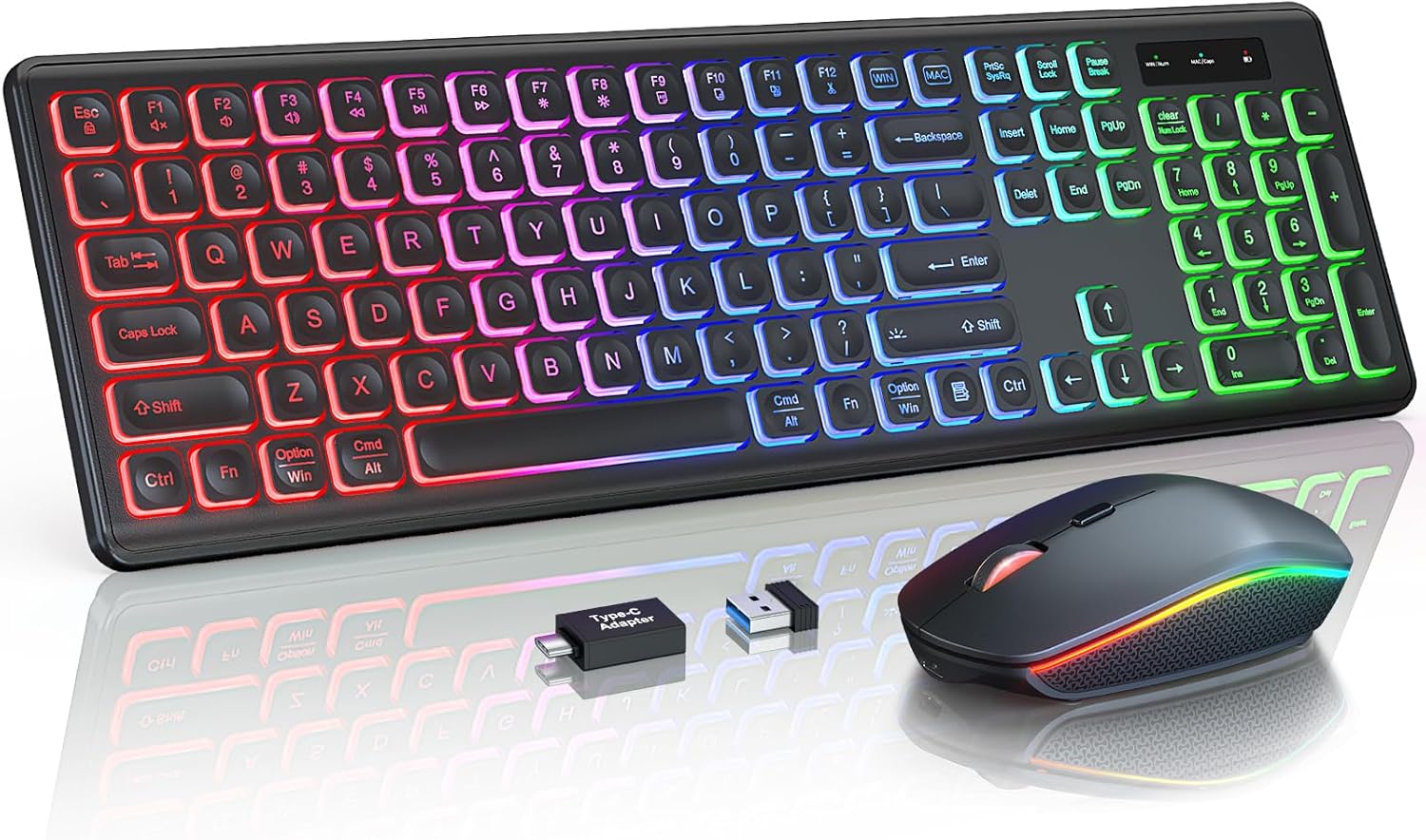
Clean and professional. "Black or grey, no gamer bling." This is the most common request in office-oriented recommendation threads. People want something that looks like it belongs in a grown-up workspace, not a spaceship cockpit.
Slim and minimal. Low-profile boards that almost disappear on a desk or look natural next to a tablet on a coffee table. This aesthetic overlaps heavily with the travel and couch-use crowds.
Enthusiast and expressive. Custom keycap colors, wood or metal accents, retro themes, unique colorways. Brands like Keychron and NuPhy have built their followings partly on this — keyboards that look interesting without looking aggressive. If your keyboard is something you enjoy looking at, that's part of the experience.
The "Gamer Look" Divide
Some buyers actively avoid angular shapes, aggressive fonts, and heavy RGB because it looks out of place in an office or living room. Others want exactly that. Neither is wrong — it's just personal taste. But if you're shopping and a board's marketing is covered in lightning bolts and neon, and your desk has a plant and a candle on it, there might be a mismatch.
Footprint Matters
A full-size keyboard dominates a small desk. A compact 65% almost disappears. If desk space is tight, or if you want more room for your mouse, going smaller has a visible impact on how your whole setup looks and feels. This is one of those cases where aesthetics and function overlap perfectly.
Price and Value — What You Get at Every Budget
On forums and in reviews, the conversation is rarely just about price — it's about value. "Is what I'm getting worth what I'm paying?" That's the question. And the answer changes a lot depending on the range.
Under $30
Basic membrane or scissor-switch boards. They work. They connect wirelessly. They type. Don't expect great feel, premium materials, or a ton of features. These are fine for light use, couch keyboards, secondary setups, or situations where you just need something wireless and cheap.
$30–$75
This is the sweet spot for most people, and it's where the majority of "best value" recommendations land in forums. In this range, you can find solid wireless boards with decent mechanical or hybrid switches, USB-C charging, and sometimes both Bluetooth and a dongle. You'll probably give up things like premium keycaps or extensive software, but the daily typing experience can be genuinely good.
$75–$150
Enthusiast and prosumer territory. Better mechanical switches, sturdier build quality, reliable multi-device pairing, backlighting that actually works well, and overall more polished fit and finish. Brands like Keychron, NuPhy, Logitech's MX line, and some Corsair and Razer models live here. If you type a lot and want something that feels great and lasts, this is where the research says you'll be happiest with your purchase.
$150+
Premium builds, specialty ergonomic boards, hot-swappable switch designs, and high-end customs. You're paying for craftsmanship, exceptional wireless implementation, and sometimes a level of customization that lets you swap out switches and keycaps to make the board truly yours. Worth it if you type all day and care about the experience. Not necessary — at all — for casual users.
The Honest Framing
Wireless keyboards do cost more than their wired equivalents. That's the tax for convenience. But the gap has narrowed significantly over the last few years. A great wireless keyboard at \$80 today would've been \$150 not that long ago.
The most common negative phrase in keyboard reviews is "overpriced for what it offers." The most common praise is "best value under $X." The gap between those two reactions almost always comes down to build quality and whether the keyboard actually delivers on its spec sheet. Price is just a number — value is about what you get for it.
The Red Flag Checklist — What to Watch Out For Before You Buy
This is the section we at Style Review built directly from what real buyers warn each other about. These issues pop up across forums, review sites, and YouTube consistently enough that they're worth checking for before you buy — not after.
Think of this as a five-minute pre-purchase screening. It could save you a return trip and a lot of frustration.
- Search for double-typing complaints. Look up your target model plus "double press" or "double typing." It's the most common long-term failure, and some models are notorious for it.
- Verify the battery specs. If the listed capacity or battery life seems amazing for the price, check user reviews for real-world numbers. Misleading specs have been documented.
- Check for backlighting. If you ever type in dim lighting, no backlight at the \$50+ price point is a frustration many buyers report. Make sure you know what you're getting.
- Look at the actual layout. Zoom into the keyboard image. Are any keys shrunken, merged, or moved from their standard positions? Non-standard layouts are a top complaint because they break muscle memory.
- Confirm software support. If the keyboard advertises RGB customization or programmable keys, does it actually ship with software to configure them? "No software" is a surprisingly common complaint on otherwise decent boards.
- Check the connection options. Bluetooth-only is fine for casual use, but if you need reliable low-latency, make sure there's a 2.4 GHz dongle option or wired fallback.
- Read the low-star reviews. Specifically, filter to 1 and 2-star reviews and scan for patterns. One bad review is an outlier. Ten people describing the same issue is a warning sign. Pay attention.
- Look for comments about keycap durability. If multiple reviewers mention legends fading, keys getting shiny, or print wearing off — expect the same.
We're not trying to make you paranoid. Most keyboards in the \$50+ range from established brands work fine for most people. But a few minutes of targeted research on your specific model is the single easiest way to avoid a bad purchase.
Quick-Reference Decision Framework
Bookmark this. Screenshot it. Come back to it when you're ready to buy.
- → What's your main use case?
- Office / Gaming / Travel / Couch — this shapes everything.
- → How much do you type daily?
- Several hours → prioritize ergonomics, switch comfort, and build quality.
Casual use → a comfortable standard layout is probably fine. - → Do you share your space with other people?
- Yes → noise level matters. Lean toward quieter switches.
No → type as loud as you want. - → Do you switch between multiple devices?
- Yes → multi-device Bluetooth pairing or dual-mode connectivity is a must.
No → a single-device dongle setup works fine. - → What's your budget?
- Under $30 → basic, gets the job done.
$30–$75 → sweet spot for most people.
$75–$150 → enthusiast quality, noticeable step up.
$150+ → premium, worth it for heavy daily use. - → Do you care how it looks on your desk?
- Yes → pay attention to form factor, color, and design language.
No → optimize for feel and function. - → Have you searched for known problems with your top pick?
- Do this last, every time. Five minutes of targeted review reading beats hours of post-purchase regret.
Trust Your Priorities
Here's what it all comes down to.
Start with how you'll use the keyboard. Figure out which two or three factors matter most to you — not to a reviewer, not to a Reddit commenter, not to the person who made the "best of" list you're reading. Then find the board that nails those priorities within your budget. And before you hit "buy," spend five minutes checking reviews for the red flags we covered.
That's it. That's the whole process.
There's no universal winner in wireless keyboards. There never will be, because people's hands are different, desks are different, jobs are different, and what feels perfect to one person feels wrong to another. The best keyboard is the one that fits your hands, your space, your workflow, and your budget — and that you don't have to think about once you start typing.
The Style Review team is here to help you make confident decisions, not to tell you what to buy. If you want to see our hands-on picks after reading this guide, check out our individual wireless keyboard reviews. And if you've got a question, a correction, or a recommendation of your own, get in touch.
We actually read those.